
10 Ways to Fix WhatsApp Link Preview Not Showing
Struggling with WhatsApp link previews not showing? This guide explains why it happens and gives simple, step-by-step fixes for Android, iPhone, and web.
Posted by Admin | On 6 April, 2026 | 7 Mins Read
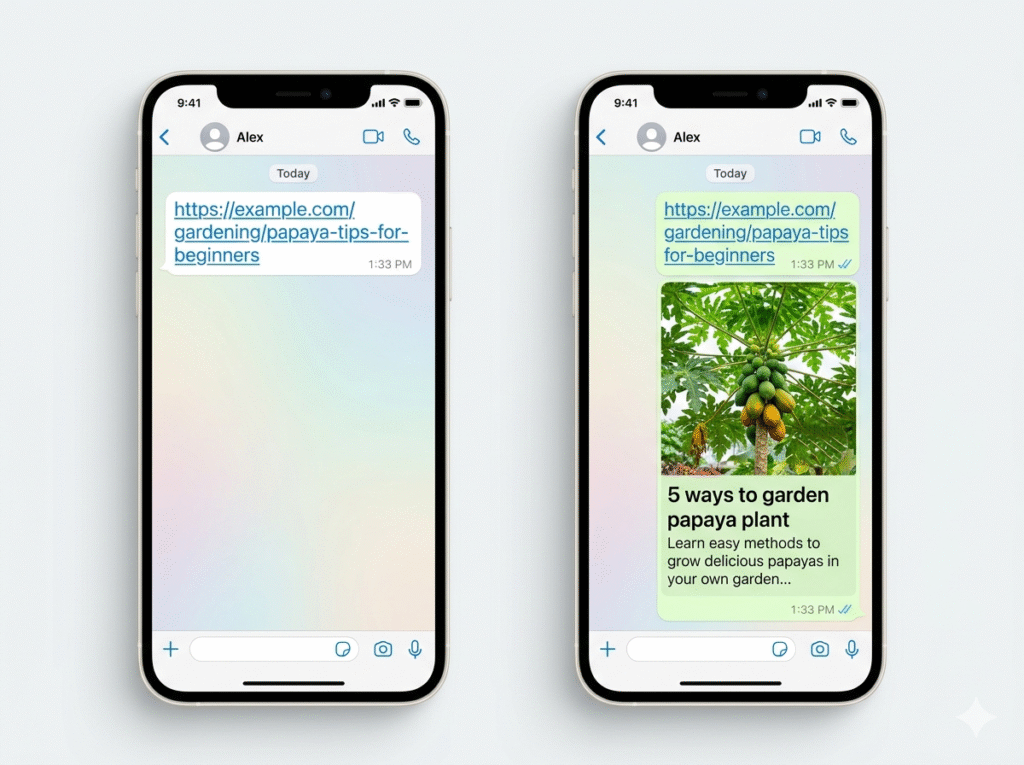
Ever shared a link on WhatsApp and noticed… nothing happens?. No thumbnail, no title, no preview—just a plain URL. Frustrating, right?. If you’re facing the “WhatsApp link preview not showing” issue, you’re not alone. Whether it’s your website, YouTube link, or Instagram post, this problem can affect anyone—from casual users to business owners.
In this guide, you’ll learn exactly why the WhatsApp link preview is not working and how to fix it step-by-step. By the end of this article, you will have a clear thesis on why previews fail and the exact steps to ensure they never fail again. Let’s solve it.
Table of Contents
ToggleWhy WhatsApp Link Preview Not Showing Happens
Before jumping into fixes, you need to understand the root problem. WhatsApp doesn’t “create” previews on its own. It pulls data from your website using something called metadata (Open Graph tags). If that data is missing, broken, or inaccessible → preview won’t show.
Common reasons:
- Missing or incorrect metadata
- Website blocked or slow
- WhatsApp cache issues
- Internet restrictions (VPN/firewall)
- Platform-specific bugs (Android/iPhone/Web)
1. Check If the Website Has Proper Metadata
One of the biggest reasons why link preview not showing in WhatsApp happens is missing Open Graph (OG) tags. If you are a site owner and the website social link is not appearing on whatsapp, your metadata is likely the problem. WhatsApp looks for specific HTML tags:
- og: title
- og: description
- og: image
Without these, WhatsApp cannot generate previews.
- Check that OpenGraph is enabled.
If you’re using Yoast SEO, then here’s a key step you can follow.
- Go to:
- WordPress Dashboard → Yoast SEO → Settings → Site Features
- Make sure: OpenGraph data is ON
- Check og: image in Page Source.
You don’t need Yoast SEO for this; you head straight to your browser, not in WordPress. Then,
- Open your published webpage URL in a browser (Chrome, etc.).
- I recommend using a desktop view or a laptop for this. Add this to your website URL: “view-source:”
Example: view-source:https://yourwebsite.com/post-name
- The page source will open, showing the HTML code.
- Search for the words “og:image“
Example: <meta property=”og:image” content=”https://yourwebsite.com/wp-content/uploads/image.jpg”>ee
If you spot the “og: image” then you do not need to worry about this issue. The problem lies elsewhere.
2. Clear WhatsApp Cache (Android Fix)
If your WhatsApp link preview still isn’t working on Android, a cluttered cache might be the culprit.
- Go to your phone’s Settings > Apps > WhatsApp.
- Tap Storage and select Clear Cache.
- Restart the app and try pasting the link again.
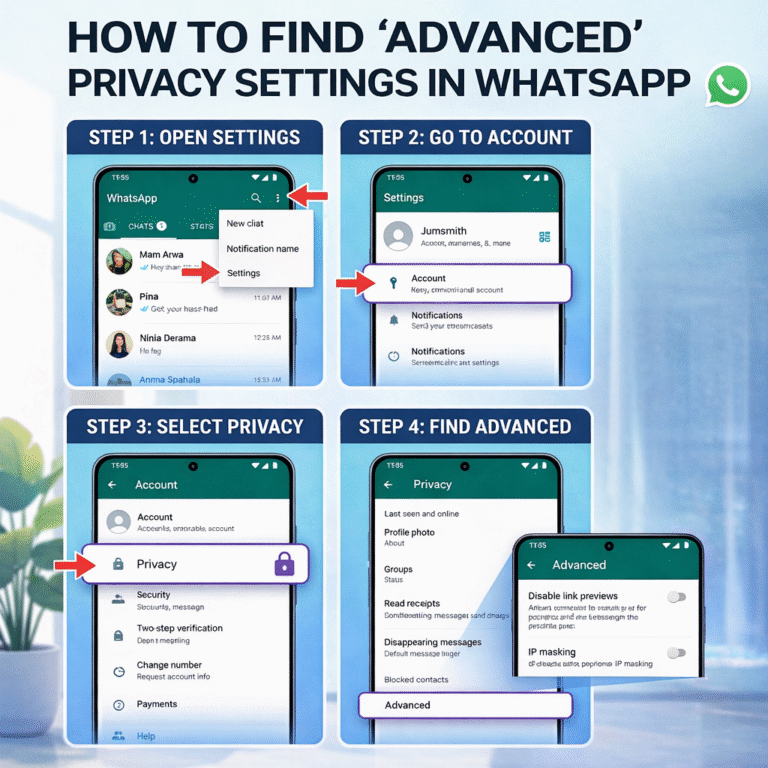
3. Enable Link Previews in Privacy Settings
The most common reason for a whatsapp link preview not working is a simple setting.
- Open "WhatsApp" and go to "Settings".
- Tap on "Privacy".
- Scroll down to "Advanced".
- Ensure the toggle for "Disable link previews" is turned OFF.
4. The "Wait and Paste" Method
Don’t hit “send” the moment you paste a link!. WhatsApp needs 2–3 seconds to “crawl” the website and fetch the thumbnail. Paste the URL, wait for the grey box to expand, and then send it.
5. Check for App Updates
Whether you are using a Samsung or an iPhone, an outdated app version can cause glitches. Head to the “Play Store” or “App Store” and ensure you are running the latest version of WhatsApp.
6. Force Refresh the Link Preview
I had the same issue, and with this hack, I was able to get it instantly resolved. Not to mention that there was another problem that I didn’t pay attention to, until later. You’ll come across the following points.
A simple trick:-
Add ?v=1 or ?share=1
At the end of your URL. This forces WhatsApp to reload the preview. for example: yourwebsite.com?v=1
7. Internet or Network Restrictions
If your internet blocks access to certain domains, previews won’t load. This is common when using VPN, Office Wi-Fi, and restricted networks.
- Switch between Wi-Fi and mobile data
- Disable VPN
- Try another network
8. Use Facebook Sharing Debugger
Since Meta owns both Facebook and WhatsApp, they share the same web crawler. If a link isn’t showing, paste it into the Facebook Sharing Debugger and click “Scrape Again.” This forces Meta to update its “memory” of your site. Paste your page URL → Click Scrape Again
WhatsApp uses the same preview system, so this refreshes it.
9. Check Image Size & Format
The second problem I stumbled across was that the “Ideal image size” has to be in a certain bracket.
If the “featured image” on your website is larger than 300KB, the link preview will not show because the app won’t wait for a heavy file to load. Therefore, you have to compress your images.
Ensure:- JPG/PNG
format- 1200 x 630 pixels
under 300KB.
If your preview image is too small or unsupported, it won’t show. If you have come across the same, then some apps do these changes. Honestly, I used ChatGPT to convert my images. I preferred Aspect Ratio: 1.91:1, it generates a desktop view orientation.
10. Ensure Your Site Has an SSL Certificate (HTTPS)
WhatsApp prefers secure links. If your website is still on “http://” instead of “https://”, the whatsapp share link preview not working issue might be a security precaution by the app.
Conclusion:
Dealing with the WhatsApp link preview not showing can be a headache, but it’s almost always a quick fix. Whether it’s toggling a privacy setting, waiting a few extra seconds before sending, or updating your website’s OG tags, you now have the tools to fix it.
Don’t let your links look like “mystery meat” in the chat. Take a moment today to check your settings or update your site’s metadata. Fixing the WhatsApp link preview not showing is easier than it looks. Most issues come down to metadata, cache, or connectivity problems. By following these steps, you can ensure your links always look professional and clickable. Which of these fixes worked for you?
(FAQ) Frequently Asked Answer
Why is my website link not working on Facebook but works on WhatsApp?
WhatsApp and Facebook use the same crawler, but their cache updates at different times. Use the Facebook Debugger tool to sync them both manually.
Why is my WhatsApp link preview not showing?
Because of missing metadata, cache issues, or internet problems.
How do I enable link preview on WhatsApp for iPhone?
Go to Settings > Privacy > Advanced and ensure “Disable Link Previews” is toggled off.
Why is my Instagram link preview not working on WhatsApp?
If the Instagram post is from a “Private” account, WhatsApp cannot scrape the image or text for privacy reasons. Only “Public” posts will show previews.
Does WhatsApp Business affect previews?
Yes, but fixes are same.